


Every time you browse the web, tracking companies quietly log your screen resolution, installed fonts, audio processing hardware, and browsing history. Maintaining robust browser privacy and tracking defenses is vital to prevent commercial advertising networks from building a permanent dossier of your online identity. In this technical walkthrough by Cauitonery, we explain modern canvas fingerprinting vectors, supercookies, and the exact browser hardening configurations that restore your digital anonymity.
🛡️ Key Browser Defense Points
- Beyond Simple Cookies: Trackers now use browser fingerprinting, measuring minuscule hardware variations to identify you without cookies.
- Private DNS Encryption: DNS-over-HTTPS (DoH) shields your browsing destination requests from your Internet Service Provider.
- Content Blocker Architecture: Installing a declarative content blocker stops tracking scripts before they execute.
- Incognito Limitations: Private browsing modes only clear local history; they do not conceal your IP address or prevent fingerprinting.
How Modern Browser Fingerprinting Works
Traditional third-party cookies are rapidly being restricted by modern browsers. In response, surveillance advertising networks have pivoted to browser fingerprinting. Instead of saving a text cookie on your drive, an invisible JavaScript code instructs your browser to render a hidden 3D canvas graphic, process an audio wave, or query system font lists.
Because subtle differences in GPU drivers, screen color depth, operating system build, and hardware architecture produce micro-variations in rendering output, the resulting cryptographic hash is unique to your computer—with over 99.2% statistical accuracy. Understanding the architecture of browser privacy and tracking countermeasures allows you to camouflage these hardware signals.
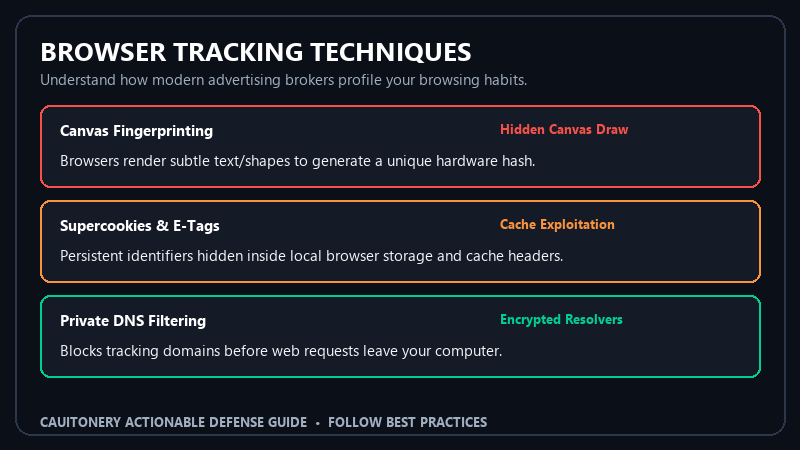
Browser Privacy Countermeasures Comparison
Different privacy tools solve different parts of the tracking puzzle. The table below outlines how each technology shields your web footprint:
5 Essential Steps to Harden Your Web Browser
1. Block Third-Party Cookies and Cross-Site Trackers
Open your browser privacy settings and configure cookie management to “Block Third-Party Cookies”. This prevents advertising domains (such as DoubleClick or Meta Pixel) from storing tracking identifiers when you visit unrelated third-party websites. Combining this with vigilance against fake online shopping websites ensures bad actors cannot inject rogue tracking scripts into your sessions.
2. Enable DNS-over-HTTPS (DoH)
By default, your operating system sends plain-text DNS queries to your internet service provider (ISP), allowing them to log every domain you visit. In your browser settings, activate Secure DNS (DNS-over-HTTPS) and select a privacy-focused resolver such as Cloudflare (1.1.1.1) or Quad9 (9.9.9.9). This encrypts DNS requests and prevents intermediate network snooping.
3. Install an Open-Source Content Blocker
Deploy a trusted, community-audited extension like uBlock Origin. Unlike commercial ad-blockers that participate in “acceptable ads” monetization schemes, uBlock Origin operates with zero commercial conflicts, blocking tracker network requests at the network layer before execution. Privacy auditors across Privacy Guides Open Source Framework rate uBlock Origin as the gold standard for web content filtration.
4. Deploy Canvas and WebGL Fingerprint Protectors
Privacy-centric browsers like Brave or Firefox incorporate native fingerprinting defenses. In Firefox, enabling Enhanced Tracking Protection (Strict Mode) or setting privacy.resistFingerprinting = true injects subtle cryptographic noise into canvas rendering, ensuring your fingerprint changes on every browsing session. This complements our recommendations for smartphone privacy audits by ensuring both your desktop and mobile browsing habits remain shielded.
5. Turn On “Do Not Track” and Global Privacy Control (GPC)
Global Privacy Control is a legally recognized web standard in multiple jurisdictions (including California CCPA and EU GDPR). When active, your browser sends a legally binding header with every HTTP request commanding websites not to sell or share your personal data. Learn more at the Global Privacy Control (GPC) Web Consortium to see how legal standards back up technological privacy.
Frequently Asked Questions (FAQ)
Does Incognito or Private Browsing mode hide me from websites?
No. Incognito mode only prevents your local browser from saving browsing history, form data, and cookies on your physical computer after the window is closed. Websites, network administrators, and your ISP can still monitor your IP address and online actions.
Which browser offers the best out-of-the-box privacy?
Brave, Firefox (configured with Strict Tracking Protection), and LibreWolf offer the strongest out-of-the-box privacy architectures, featuring built-in fingerprint randomization and aggressive third-party tracker blocking.
Will blocking tracking scripts break websites?
Standard tracker blocking rarely breaks core site functionality. However, aggressive fingerprinting protection can occasionally affect interactive WebGL games or specialized design web apps. Most content blockers allow you to easily whitelist trusted individual websites with a single click.
How does browser privacy and tracking defense affect page load speed?
Counter-intuitively, hardening your browser and blocking telemetry trackers almost always accelerates page load speeds by 30% to 50%, because your browser is no longer waiting to download bloated advertising scripts and tracking pixels.
