

A second-hand or pre-owned laptop can deliver immense computing power at half the cost of a brand-new machine, making it a favorite choice for students, coders, and creators. However, hidden motherboard stress fractures, failing NVMe drives, degraded cooling fans, and locked corporate firmware can turn a bargain into an expensive electronic paperweight. This comprehensive used laptop buying guide provides an exhaustive testing checklist to benchmark every internal component before you finalize the purchase.
🛡️ Key Laptop Diagnostic Takeaways
- Firmware Lock Check: Verify the BIOS / UEFI is not password-protected and Computrace / Absolute Persistence is permanently disabled.
- SSD S.M.A.R.T. Health: Inspect remaining NVMe drive write life and check for bad sectors using CrystalDiskInfo.
- Thermal Stress Testing: Run a 10-minute Cinebench or FurMark test to verify cooling fans spin up smoothly without thermal throttling.
- Battery Cycle Count: Confirm the internal battery retains at least 80% original design capacity and zero swollen cell bulging.
The Anatomy of Used Laptop Hardware Risks
Unlike smartphones, laptops undergo heavy thermal expansion and physical flexing. Keyboards gather debris, thermal paste dries out into crusty powder, and hinge anchors can hairline-crack inside plastic chassis. Without bringing a portable USB drive equipped with diagnostic utilities, you have no way of knowing whether the CPU throttles to a crawl under load.
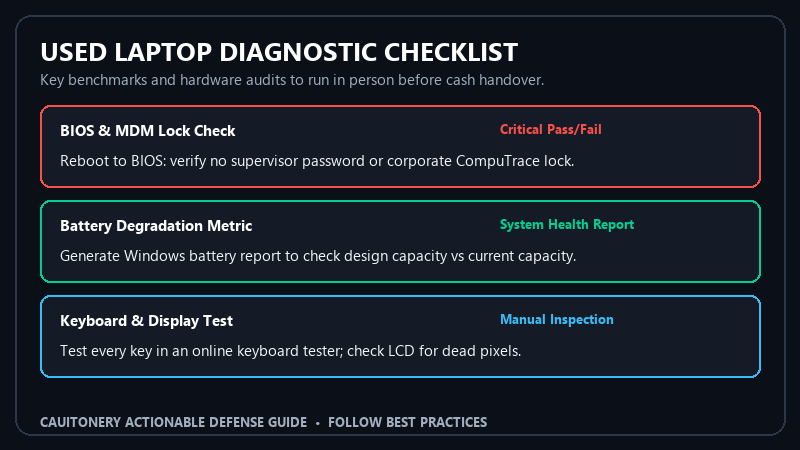
Used Laptop Diagnostic Benchmark Matrix
Bring a USB drive with these lightweight, free diagnostic tools when meeting the seller or evaluating a delivered unit:
Essential Steps from Our Used Laptop Buying Guide
1. Inspect Firmware and BIOS Passwords
Before booting into Windows, restart the laptop and repeatedly tap the BIOS key (typically F2, F12, or Del). If a prompt asks for an Administrator Password, walk away immediately. A locked BIOS prevents you from reinstalling Windows, changing boot orders, or disabling remote corporate management agents (Computrace). Ensure Computrace status reads “Disabled” or “Deactivated”.
2. Analyze Storage Drive Health with CrystalDiskInfo
Launch CrystalDiskInfo from your portable flash drive. Check the total Power-On Hours and Total Host Writes. If the drive displays a yellow “Caution” badge with reallocated sectors, budget for an immediate SSD replacement. Similar to our recommendations in the refurbished smartphone buying checklist, storage integrity is essential.
3. Test Memory Stability with MemTest86
Corrupted RAM causes intermittent Blue Screens of Death (BSOD) that can be infuriating to troubleshoot. Run the built-in Windows Memory Diagnostic (mdsched.exe) or boot into MemTest86 RAM Diagnostic Suite to confirm there are zero defective memory addresses.
4. Stress Test the CPU and Cooling Fans
Run Cinebench R23 while monitoring temperatures with HWiNFO64. The fans must spin smoothly without high-pitched whining, grinding, or rattling sounds. If the processor immediately spikes to 100°C and thermal throttles by more than 30%, the laptop urgently requires new thermal paste or a heatsink de-dusting.
5. Generate an Official Battery Health Report
Open Windows PowerShell as Administrator and execute: powercfg /batteryreport. Open the generated HTML file to compare “Full Charge Capacity” against “Design Capacity.” A healthy used laptop should retain at least 80% of its factory design capacity. Keep our guidelines on battery health and thermal management in mind when caring for aging lithium cells.
6. Physical Chassis, Hinge, and Trackpad Inspection
Open and close the screen lid smoothly with one finger. Excessive resistance or creaking noises point to stressed hinge mountings. Lay the laptop on a flat glass table; if it wobbles or the trackpad click feels stiff, the lithium-ion battery inside may be swelling—a serious safety issue.
Frequently Asked Questions (FAQ)
Can I upgrade the RAM and SSD on modern laptops?
Many modern ultra-thin laptops (like MacBooks and Dell XPS models) solder the RAM directly onto the logic board. Always look up the exact model number before purchasing to verify if memory and storage can be expanded.
What should I do if a used laptop has a corporate MDM lock?
Never buy a laptop enrolled in Microsoft Autopilot, Apple Business Manager, or Computrace. Only the originating IT enterprise department can unenroll the serial number from their management servers.
How do I test the keyboard keys quickly?
Open an online keyboard testing website (like keyboard-tester.com) and press every individual key—including Fn modifier keys, spacebar edges, and function keys—to ensure no dead membrane contacts.
Why is a used laptop buying guide important for second-hand shoppers?
Private sellers on classified sites (Craigslist, Facebook Marketplace) rarely accept returns. Following this testing guide gives you the technical confidence to identify flaws before handing over your hard-earned money.
