


Your smartphone is the most intimate data collection device ever engineered, equipped with GPS sensors, microphones, biometric readers, and ambient motion detectors. Conducting a thorough smartphone privacy audit once a quarter is essential to prevent rogue applications and advertising brokers from silently building a comprehensive profile of your movements, contacts, and personal habits. In this comprehensive Cauitonery guide, we present a step-by-step audit protocol for both iOS and Android platforms to lock down permissions and eliminate background telemetry.
🛡️ Key Privacy Takeaways
- Permission Overreach: Single-purpose apps (calculators, photo editors) frequently request invasive access to contacts and precise GPS.
- Background Location Leaks: Apps set to “Always Allow” continue tracking physical coordinates even when force-closed.
- Advertising Identifiers: Resetting your device ID disrupts third-party ad brokers from correlating cross-app behaviors.
- Dormant App Hazard: Unused apps installed years ago retain old permissions unless explicitly uninstalled or auto-revoked.
The Economics of Mobile Data Harvesting
Free mobile applications are rarely free. Monetization often depends on integrating third-party software development kits (SDKs) created by data aggregation brokers. These background SDKs collect device telemetry, Wi-Fi network names (BSSIDs), battery percentages, and fine-grained GPS coordinates, pooling this information into behavioral advertising profiles.
Without an active smartphone privacy audit, users unknowingly consent to continuous data collection simply by accepting default permission prompts during app onboarding. The regulatory bodies, including the Federal Trade Commission (FTC) on mobile app privacy, have repeatedly sanctioned ad tech firms for surreptitiously scraping geolocation coordinates without clear consumer consent.
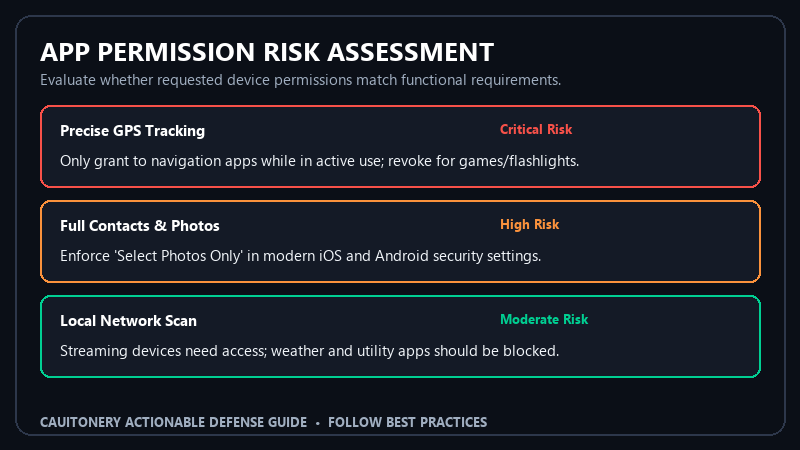
Mobile Permission Risk Classification Matrix
When auditing your smartphone, not every permission carries equal weight. Use this classification matrix to evaluate which apps genuinely require system access:
Step-by-Step Smartphone Privacy Audit Protocol
Step 1: Audit Location Services (GPS)
Navigate to your device settings (Privacy & Security > Location Services on iOS; Settings > Location > App Permissions on Android). Review every installed application and apply these rules:
- Change all non-navigation apps from “Always Allow” to “While Using the App” or “Never”.
- Disable “Precise Location” for apps that only need general regional context (e.g., weather utilities or local news). Approximate location protects your exact street address.
Step 2: Restrict Camera, Microphone, and Local Network Access
Camera and microphone permissions should be granted exclusively to dedicated communication apps (such as Signal or Zoom). Utilities, barcode scanners, and ride-hailing apps do not require ongoing microphone access. On iOS, inspect the “Local Network” permission list; streaming utilities (AirPlay/Chromecast) need this, but social media platforms use it to map other devices in your household. Pairing these controls with our browser privacy hardening guide prevents cross-device tracking profiles.
Step 3: Enforce Limited Photo Library Access
Never grant an application full, unrestricted access to your entire camera roll. Both modern iOS and Android versions support “Limited Access” / “Select Photos”. This allows you to pick specific photos for an app to upload without exposing thousands of private, geotagged family images to external code libraries.
Step 4: Reset or Delete Your Advertising Identifier
Mobile platforms assign a unique alphanumeric tracking token to each device (IDFA on Apple; AAID on Google). To disrupt ad profiling:
- iOS: Go to Settings > Privacy & Security > Tracking, and disable “Allow Apps to Request to Track”.
- Android: Go to Settings > Google > Ads (or Privacy > Ads) and tap “Delete Advertising ID”.
Digital rights organizations like the EFF Surveillance Self-Defense project advocate resetting or deleting advertising identifiers as a standard operating procedure for every mobile user.
Step 5: Purge Dormant Applications and Review Lock Screen Security
Unused apps pose unnecessary security and privacy risks. If an application has not been opened in 90 days, uninstall it permanently. Both platforms now offer “Auto-Revoke Permissions” for dormant applications; ensure this feature is toggled on across all apps. Additionally, verify your lock screen privacy settings and review your device password and biometric security to prevent physical eavesdropping if your phone is ever misplaced.
Frequently Asked Questions (FAQ)
Do apps listen to my private conversations through the microphone?
While urban legends claim apps silently record ambient audio, continuous microphone recording is battery and bandwidth-intensive and easily detected by modern operating system indicators (the green/orange status dot). Instead, ad networks infer your interests through location correlation, shared IP addresses, and browsing behaviors.
What does “App Tracking Transparency” actually do on iPhone?
When you tap “Ask App Not to Track,” iOS blocks the application from accessing your device’s IDFA token and legally prohibits the developer from linking your in-app data with third-party data broker networks.
Is an Android phone fundamentally less private than an iPhone?
By default, Android shares more telemetry with Google services than iOS does with Apple. However, modern Android versions (12+) provide comprehensive privacy dashboards and granular permission controls. An Android user who performs a regular smartphone privacy audit can achieve high levels of privacy.
How often should I conduct a smartphone privacy audit?
We recommend performing a comprehensive audit once every three months, or immediately after installing major system operating system updates, as system updates occasionally reset certain background permissions to factory defaults.
