






Connecting to an unsecured wireless network at an airport, hotel, or neighborhood cafe takes just a single tap, but it exposes your most sensitive credentials to anyone sharing that same radio frequency. Adhering to strict public wi-fi security rules has become an indispensable requirement for anyone who uses a laptop, tablet, or smartphone away from home. In this comprehensive guide by Cauitonery, we dissect the mechanics of wireless packet interception, rogue access points, and the 7 non-negotiable security habits that keep your data encrypted and unreachable.
🛡️ Key Public Wi-Fi Takeaways
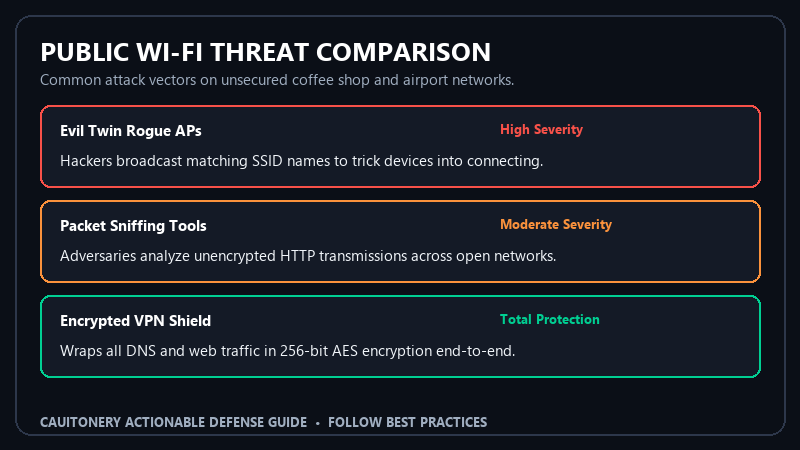
- Open Network Vulnerability: Unencrypted Wi-Fi broadcasts all packet frames over open air, making packet sniffing trivially simple.
- The VPN Shield: A reputable Virtual Private Network creates a cryptographic 256-bit tunnel that shields all device communications.
- Beware Rogue Hotspots: Hackers routinely deploy lookalike access points with names like “Airport_Free_WiFi” to capture login tokens.
- Local Sharing Exposure: Operating systems treat new Wi-Fi connections as local networks, potentially opening shared folders and printers.
The True Risks of Unsecured Public Wi-Fi Networks
Public Wi-Fi networks in airports, hotels, and cafes prioritize frictionless access over cryptographic protection. Most open networks operate without wireless encryption (WPA2 or WPA3-Enterprise), meaning that data transmitted between your device’s antenna and the access point travels unencrypted through the physical air. Anyone equipped with a cheap network sniffer can inspect packet headers and track network traffic.
Adversaries sitting within radio range can use readily available, low-cost hardware adapters to intercept data packets. While modern websites deploy HTTPS encryption, unencrypted DNS lookups, metadata, and unhardened mobile applications can still leak browsing habits, device identities, and session tokens to passive observers. That is why understanding and following proven public wi-fi security rules is crucial for mobile professionals and casual travelers alike.

Public Wi-Fi Risk Matrix: Network Comparison
Not all external networks carry the same threat profile. The table below illustrates the defensive posture and risk levels associated with common connectivity options outside your home:
| Connection Type | Encryption Level | Primary Threat Vector | Relative Risk |
|---|---|---|---|
| Open Airport/Cafe Wi-Fi | None (Unencrypted) | Packet sniffing, Evil Twin hotspots | Critical |
| Passworded Hotel Wi-Fi | Shared WPA2-PSK | Same-subnet peer sniffing, ARP spoofing | High |
| Public Wi-Fi with Paid VPN | AES-256 / ChaCha20 Tunnel | Traffic volume analysis (data is unreadable) | Low |
| Cellular 4G/5G Hotspot | Carrier-grade SIM Encryption | Stingray/IMSI catchers (rare for general public) | Minimal |
7 Essential Public Wi-Fi Security Rules
1. Never Connect Without an Active Virtual Private Network (VPN)
A reputable, paid VPN service is your primary defense line on public networks. When activated, a VPN encapsulates all inbound and outbound network traffic inside an encrypted tunnel (typically using WireGuard or OpenVPN protocols with AES-256 encryption). Even if a malicious actor controls the router you are connected to, they only observe indecipherable cryptographic noise. Pair this with robust two-factor authentication on your core accounts to ensure double-layered protection against unauthorized access.
2. Disable Automatic Wi-Fi Reconnection and Auto-Join
Smartphones and laptops are configured by default to automatically reconnect to previously saved SSIDs (Service Set Identifiers). Threat actors take advantage of this behavior by broadcasting common network names (such as “Google Starbucks” or “Marriott_Guest”). Your device will seamlessly associate with the attacker’s rogue hotspot without prompting you. Always disable “Auto-Join” in your device’s Wi-Fi network settings to follow foundational public wi-fi security rules.
3. Turn Off Local File Sharing, AirDrop, and Network Discovery
When connecting to an unfamiliar network, operating systems may classify the connection as a “Private” or “Home” network unless instructed otherwise. On Windows, immediately set the network profile to Public to enable strict inbound firewall rules. On macOS and iOS, set AirDrop visibility to “Receiving Off” or “Contacts Only” to prevent unwanted proximity file transfer probes and unwanted network discovery.
4. Verify the Authentic Hotspot Name with Staff
In a tactic known as the “Evil Twin” attack, a cybercriminal sets up a portable wireless access point (such as a Wi-Fi Pineapple) in a public venue and names it to mimic the venue’s legitimate network. Before connecting, always ask venue staff for the exact network name and any required splash-page credentials. If you see two identical network names where one has no password, never connect to the open one.
5. Enforce HTTPS-Only Mode in Your Web Browser
Modern browsers like Chrome, Firefox, and Brave offer an “HTTPS-First” or “HTTPS-Only” toggle in their security settings. This feature blocks connections from silently falling back to unencrypted HTTP protocol during network disruptions or SSL-stripping attacks orchestrated by rogue intermediaries. Federal security recommendations from CISA cybersecurity guidelines for travelers emphasize forced HTTPS as a baseline necessity on remote networks.
6. Avoid Accessing Online Banking or Primary Email on Public Wi-Fi
Even with protective software installed, exercising operational restraint is smart defense. Postpone high-stakes activities—such as wire transfers, stock trading, or modifying master email security settings—until you are connected to a trusted home network or using cellular mobile data. If an urgent financial transaction is unavoidable, make sure you utilize secure online payment methods that feature tokenization and one-time virtual card numbers.
7. Forget the Network Immediately After Use
Once you pack up your laptop or leave the venue, open your device’s network preferences and select “Forget This Network.” This prevents your device from passively probing for that network in background radio scans when you travel through other locations, effectively slamming the door on historical connection vulnerabilities.
Cellular Data vs. Public Wi-Fi: Which Is Safer?
Whenever you need to conduct sensitive transactions on the go, utilizing your smartphone’s built-in Cellular Hotspot (Tethering) is drastically safer than any public Wi-Fi access point. Cellular connections (4G LTE and 5G) use rigorous carrier-grade encryption and individual SIM authentication, preventing nearby eavesdroppers from intercepting your data packets. The cybersecurity experts at the Electronic Frontier Foundation (EFF) continually rank personal mobile tethering well above public Wi-Fi in their surveillance self-defense frameworks.
Frequently Asked Questions (FAQ)
Is public Wi-Fi safe if the network has a password?
No. A shared password (such as a coffee shop Wi-Fi password written on a chalkboard) provides zero isolation from other patrons on that same network. Anyone with that shared key can monitor traffic transmitted by other connected devices unless you utilize a personal VPN.
Can a VPN completely protect me from fake public hotspots?
Yes. A trusted VPN encrypts all data packets leaving your device before they reach the local Wi-Fi router. Even if the router is compromised, the operator cannot read your communications or redirect your secure connections.
Should I turn off Wi-Fi when I am not actively using it?
Yes. Disabling Wi-Fi when commuting prevents your device from continuously broadcasting connection probes and reduces tracking by retail beacon networks that log hardware MAC addresses. Following these public wi-fi security rules keeps your digital life safe wherever your journey takes you.
What should I do if I accidentally logged into my bank on open Wi-Fi?
Disconnect from the network immediately, switch to cellular data or a secure home connection, change your banking password right away, and review recent account statements for unauthorized transactions. Ensure that multi-factor authentication is active on the account.


